

Create and Manage Assessments in Wajooba
How to Create and Manage Assessments in the Wajooba Admin
Assessments · 6 min read · Updated Nov 20, 2026
Overview
Ready to check what your members have really learned? ✨ With Wajooba Assessments you build question banks, turn them into timed tests, add them to your courses as lessons, and review every member's score card.
In this guide you will:
Stage What you'll do Build a question bank Create a bank and add your questions Create the assessment Set the name, instructions, time, passing percentage and score type Add question groups Choose which questions go into the test Choose test settings Pick Practice Test or Final Test Publish Switch the assessment from Private to Published Add it to a course Attach the assessment to a course lesson Review results Check Score Cards for each member
Prerequisites
- Access to the Wajooba Admin with permission to manage products and courses.
- Your questions, answer choices and correct answers ready.
- A passing percentage and time limit in mind (for example, 35% and 30 minutes).
- A course to attach the assessment to.
Steps
Step 1: Open Assessments
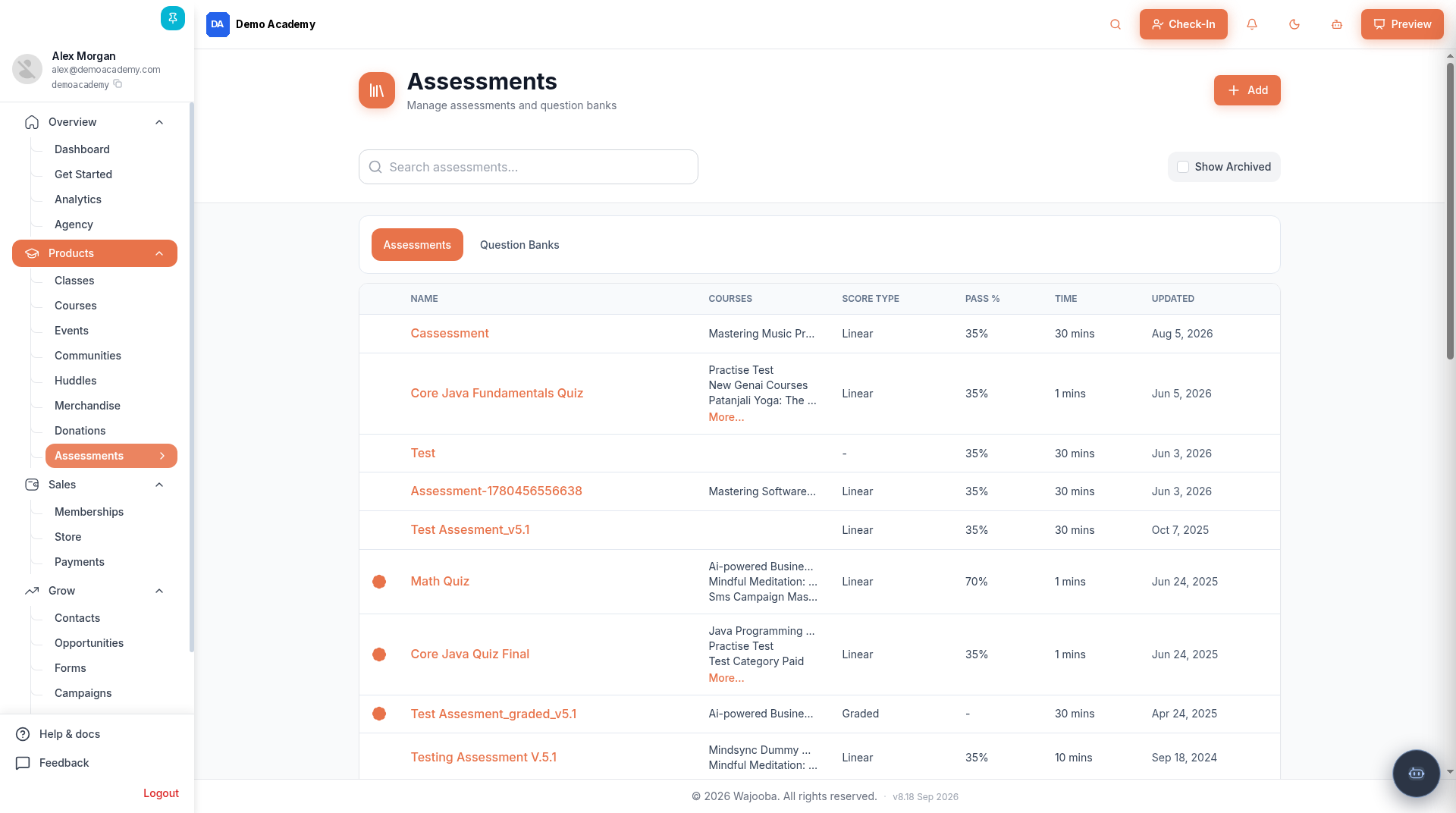
- In the left menu, go to Products > Assessments.
- You'll see two tabs: Assessments (your tests) and Question Banks (your question libraries).
📷 [Add screenshot here: the Assessments page in your admin] !
Step 2: Create a Question Bank
Admin > Products > Assessments > Question Banks
- Open the Question Banks tab and click + Add.
- Enter a Name (required), for example
Sample Question Bank, and an optional Subject. - Click Submit. Your new, empty bank opens.
📷 [Add screenshot here: your Add Question Bank dialog filled in] !

Step 3: Add Questions
Question Banks > {bank} > + Add Question
- In your bank, click + Add Question.
- Type the Question (required).
- Pick a Chapter (required). To create one, click the gear icon next to the dropdown.
- Optionally use Add Media to attach an image, video or audio file.
- Choose an Answer Type (see the table below) and fill in the answers.
- Add a Member explanation (optional), then click Submit.
Answer type What you set up Single Add choices in Answers and select the one correct answer Multi Choice Add choices and tick every correct answer Graded Pick a Grading Scale (create one with the gear icon: a name plus Score/Choice grades) Open Ended Set a Weightage, which is the marks the question is worth
Repeat for each question. Your bank then lists every question with its type and chapter.
📷 [Add screenshot here: your question editor or your question bank with questions] !

💡 Tip: There's no True/False type. Use Single with two choices, True and False.
Step 4: Create the Assessment
Admin > Products > Assessments > Assessments > + Add
- On the Assessments tab, click + Add.
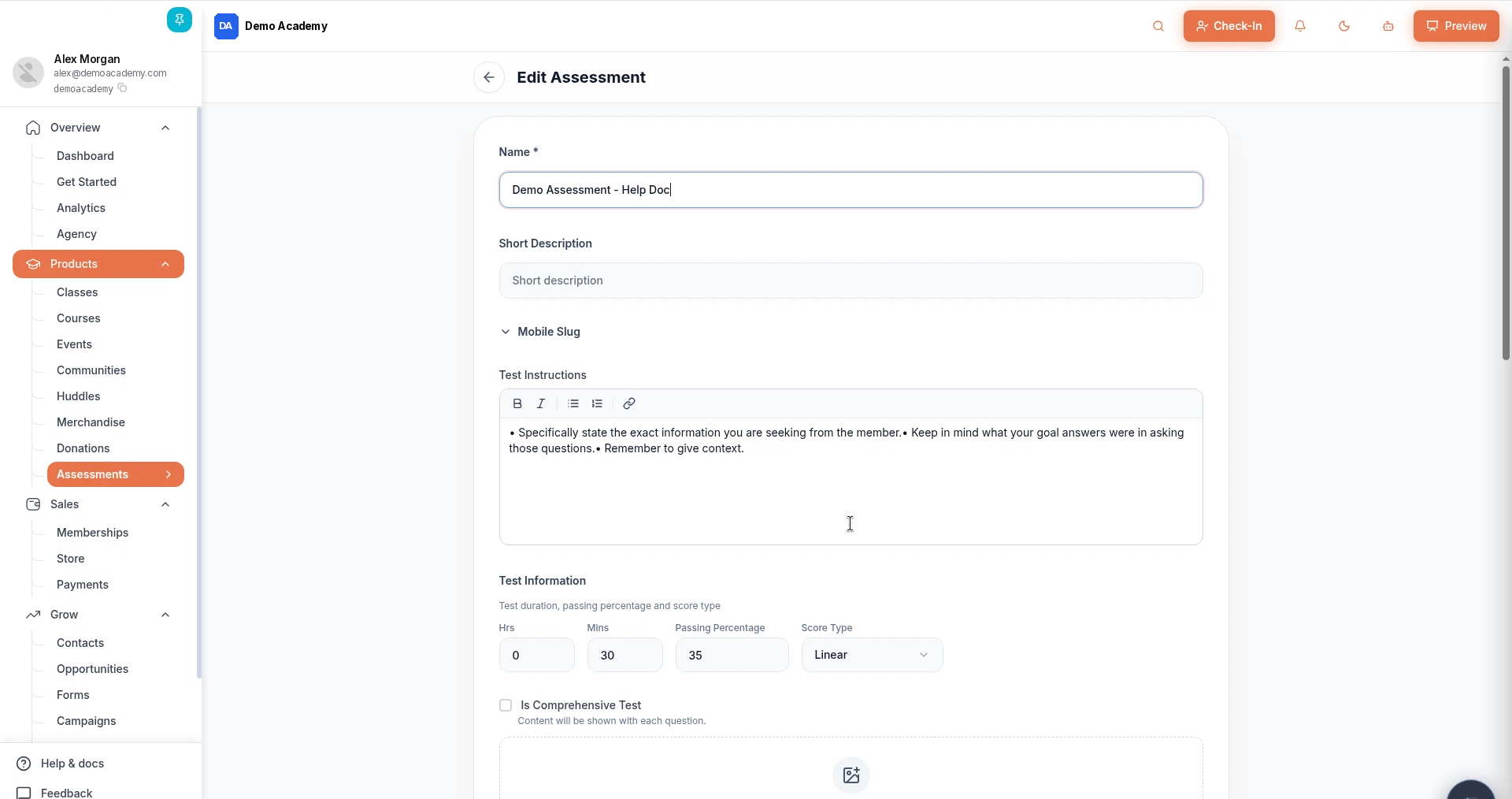
- Enter a Name (required) and a Short Description.
- Write the Test Instructions that members see before they start.
- Under Test Information, set Hrs, Mins, Passing Percentage and Score Type (Linear, Negative Marking or Graded).
- Tick Is Comprehensive Test only if you want content "shown with each question".
📷 [Add screenshot here: your assessment details form] !
Step 5: Add Question Groups
Edit Assessment > Question Groups
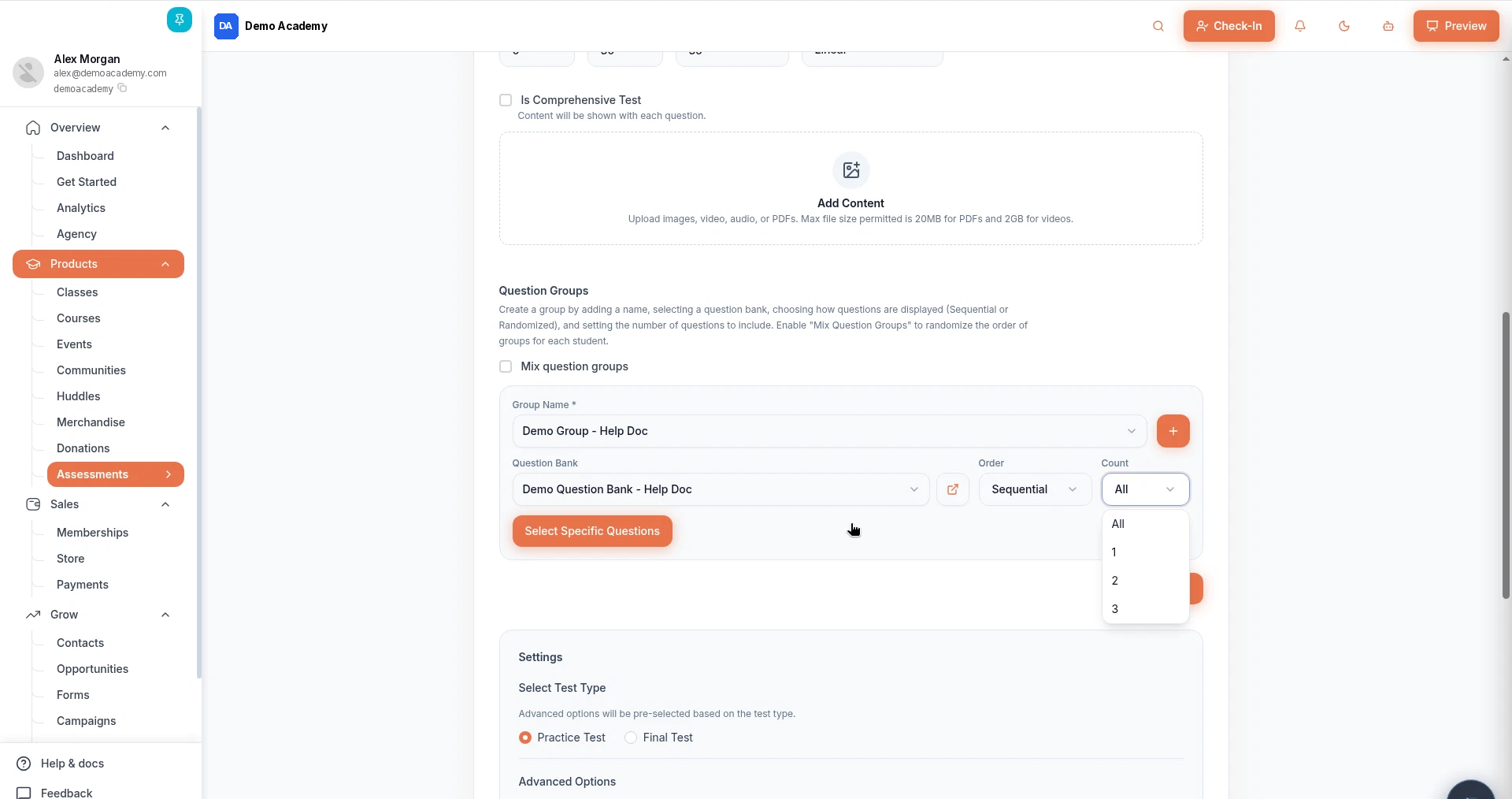
- Scroll to Question Groups.
- Choose a Group Name (required). Click + beside the dropdown to create one.
- Pick the Question Bank to pull questions from.
- Set the Order (Sequential or Randomized) and the Count (All or a number).
- To hand-pick questions, click Select Specific Questions, tick the ones you want, and confirm with ✓.
- Click Add Group to add another group, if needed.
📷 [Add screenshot here: your question group setup] !
💡 Tip: Tick Mix question groups to shuffle the order of groups for each student.
Step 6: Choose Test Type and Settings
Edit Assessment > Settings
- Under Select Test Type, choose Practice Test or Final Test. Advanced options are pre-selected for you.
- Adjust any Advanced Options you need.
- Click Submit to save the assessment.
Option Practice Test Final Test Is Answer Mandatory Off On Show Answers After Each Question On Off Show Explanation On Off Add Result Screen On Off Show Answers In Result On Off Repeat Assessment On Off Mark test as complete only on pass Off Off Show Thank you Message Only Off Off Generate Certificate Off Off
📷 [Add screenshot here: your Settings section with the test type selected] !
💡 Tip: Each course has only one certificate, so turn on Generate Certificate for your last test only.
Step 7: Review the Assessment Page
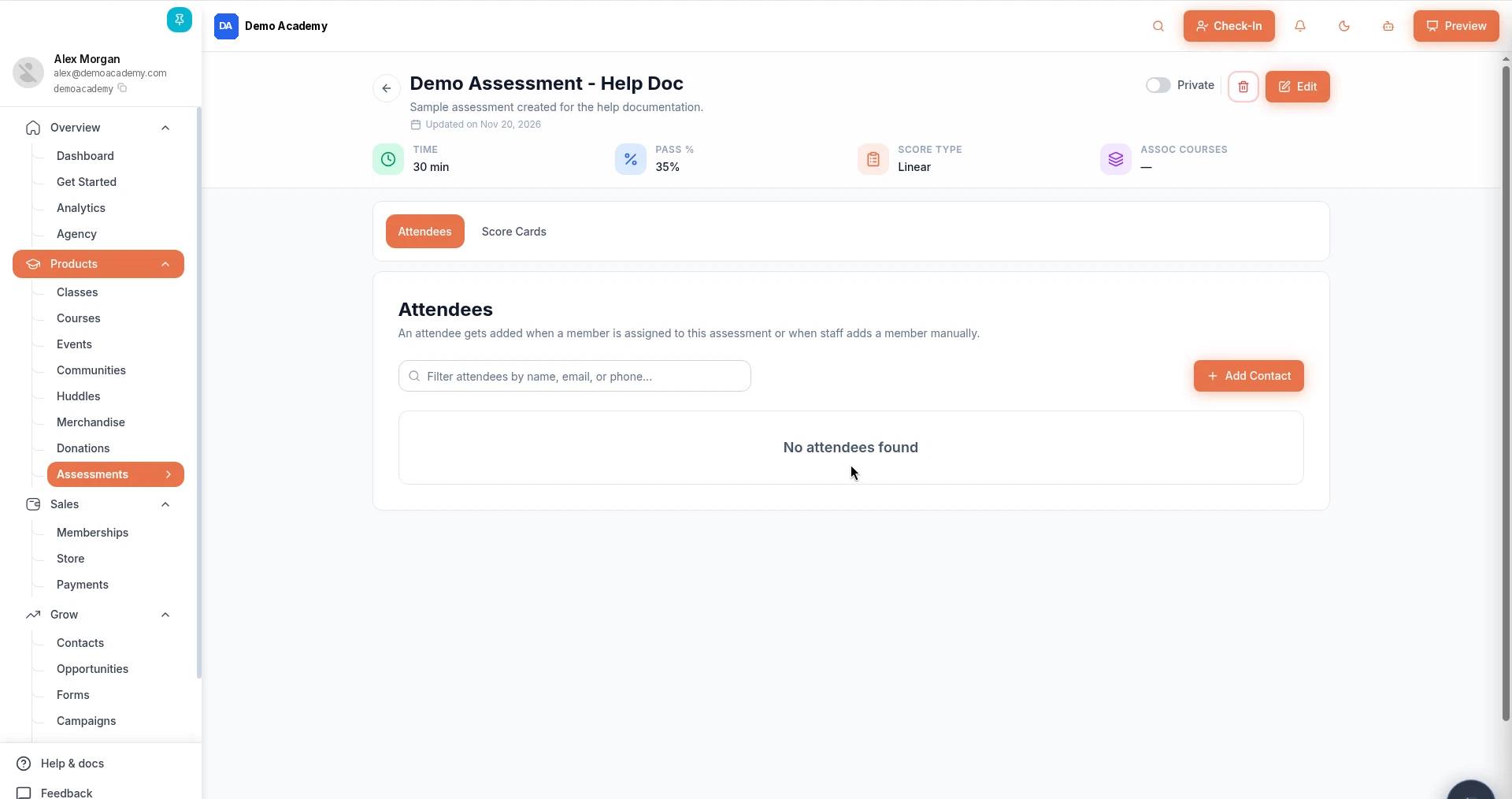
After you click Submit, the assessment's page opens. It shows the Time, Pass %, Score Type and Assoc Courses, plus two tabs: Attendees and Score Cards.
📷 [Add screenshot here: your assessment detail page]!
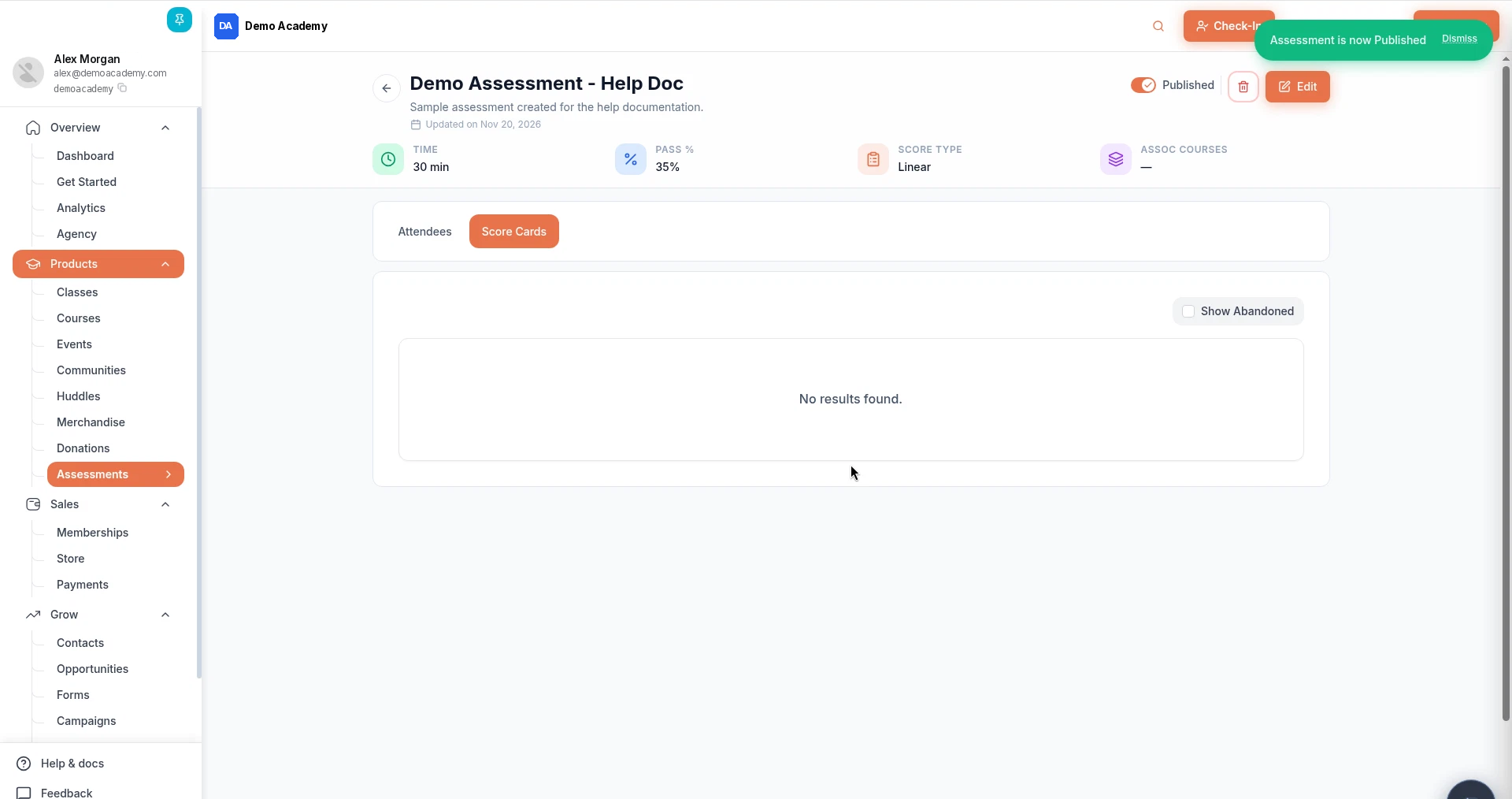
Step 8: Publish the Assessment
- On the assessment page, flip the Private switch at the top right.
- It changes to Published and shows "Assessment is now Published". 🎉
📷 [Add screenshot here: your assessment showing Published]!
Step 9: Add the Assessment to a Course Lesson
Admin > Products > Courses > {course} > Contents
- Go to Products > Courses, open your course and click the Contents tab.
- Add a section and a lesson if you don't have one (Add Section), then open the lesson.
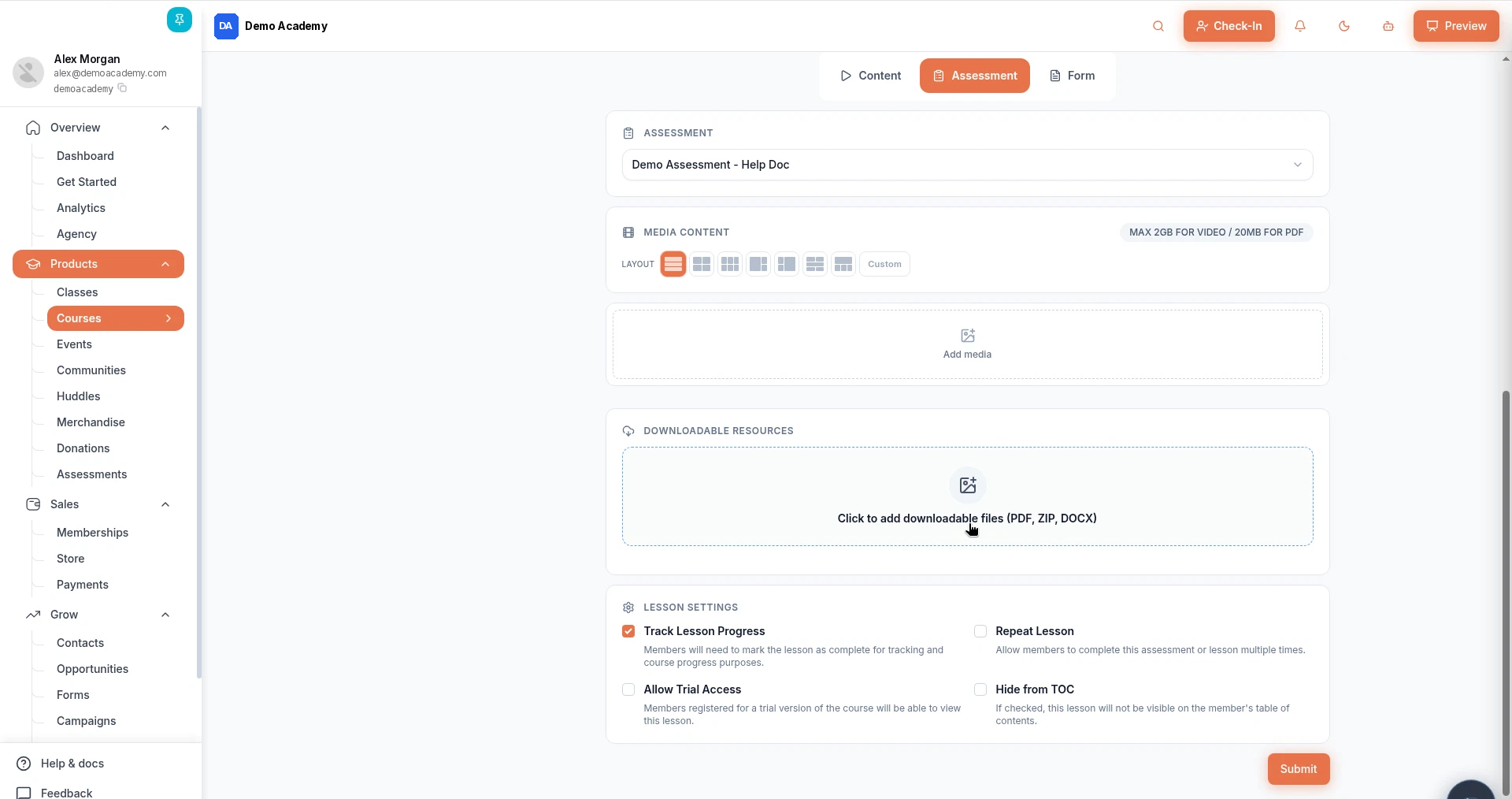
- Enter a Lesson Name, then click Assessment in the Content | Assessment | Form switch.
- In the ASSESSMENT dropdown, select your assessment.
- Under LESSON SETTINGS, choose Track Lesson Progress, Repeat Lesson, Allow Trial Access or Hide from TOC as needed.
- Click Submit.
📷 [Add screenshot here: your course lesson with the assessment selected]!
💡 Tip: New lessons show a Draft status at the top of the lesson editor. Check it before you share the course.
Step 10: Review Results
Admin > Products > Assessments > {assessment} > Score Cards
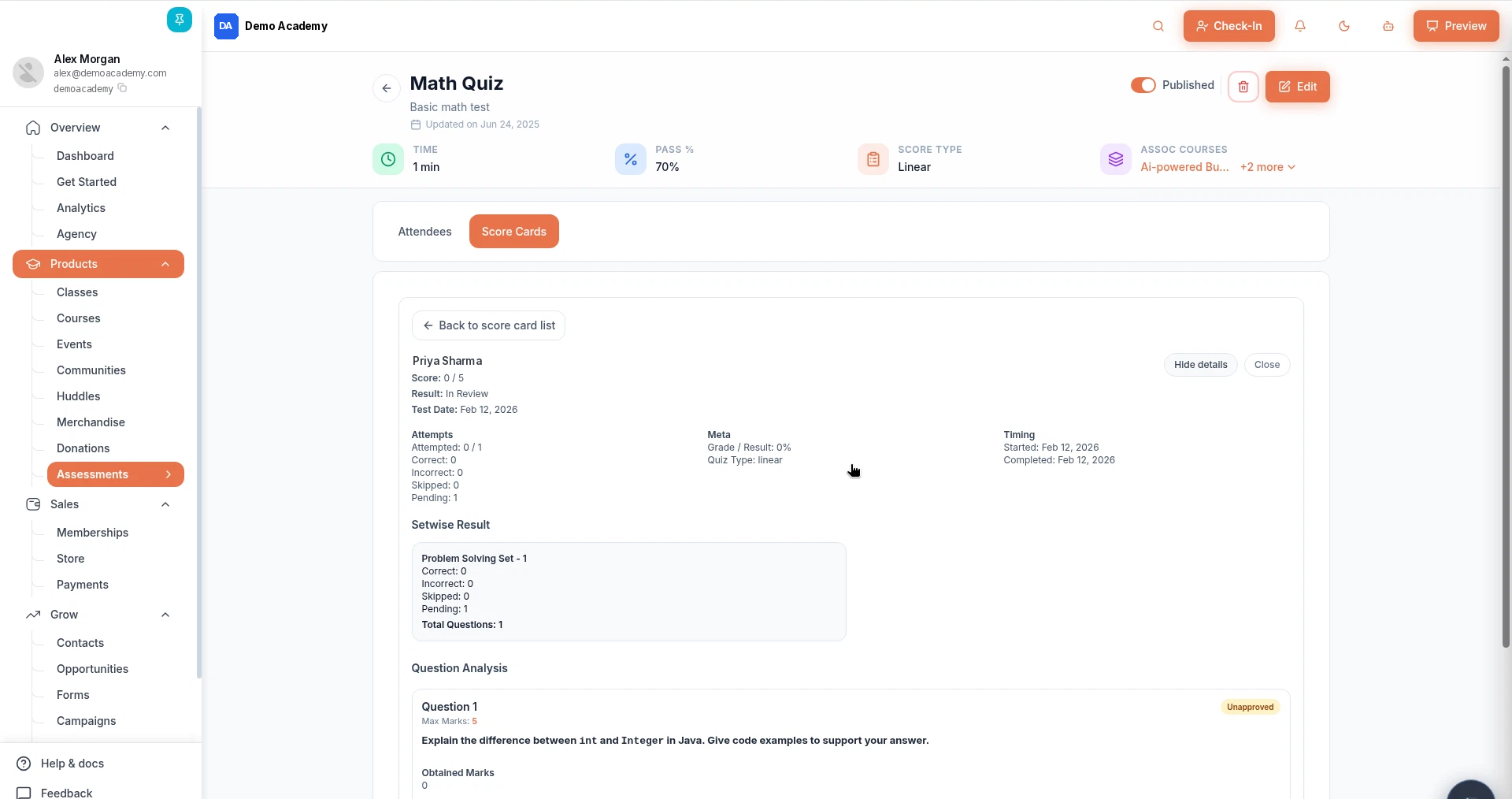
- Open the assessment and click Score Cards. Each row shows the member, Score / Grade, Status and Date. Tick Show Abandoned to include unfinished attempts.
- Open a score card and click View details to see Attempts, Timing, Setwise Result and Question Analysis.
- Open-ended answers show as Unapproved until you review them under Question Analysis.
📷 [Add screenshot here: a score card from your assessment]!
You can also see assessment lessons in the course's Submissions tab. Fantastic work! 🎉
Tips
- Keep one question bank per topic and use chapters to organise it.
- Write a short Member explanation for each question.
- Pair a Practice Test during the course with a Final Test at the end.
- Use Randomized order and a Count to give members different questions from a large bank.
- Check Score Cards often if you use Open Ended questions.
Troubleshooting
Problem What to do I can't find Assessments Expand Products in the left menu. I can't save a question Fill Question and Chapter, plus Grading Scale (Graded) or Weightage (Open Ended). The Chapter dropdown is empty Click the gear icon next to Chapter and create one. My grading scale won't save Add at least one grade with both a Score and a Choice. My assessment isn't in the lesson dropdown Make sure you saved it with Submit, then search by name. Members can't see the assessment lesson Check the lesson isn't Draft, Hide from TOC is off, and the assessment is Published. A score card says In Review Open it, click View details, and review any Unapproved answers.
Frequently Asked Questions
What's the difference between a question bank and an assessment? A question bank is your library of questions. An assessment is the test members take, and it pulls questions from banks through question groups.
What's the difference between Practice Test and Final Test? They're presets. Practice Test turns on answers, explanations, results and repeats. Final Test turns those off and makes answers mandatory. You can change any option afterwards.
Which question types can I use? Single, Multi Choice, Graded and Open Ended.
How do members take an assessment? Attach it to a lesson in a course (Contents > lesson > Assessment). Members reach it as a lesson in that course.
Where do I see scores? On the assessment's Score Cards tab.
Related Articles
- Build & Launch Your Online Course with AI in Wajooba
- Launch Your Course: Set Pricing, Enroll Learners & See Their Journey
Still need help? Our team is happy to help. Contact support.
Was this article helpful?
Still need help?
Can't find what you're looking for? Our team is happy to help.