

Google Meet Integration
Overview
You're about to make your online classes and events so much easier! Wajooba can magically create Google Meet links for you, saving you precious time and ensuring your events run smoothly. Let's get this fantastic feature set up together!
Prerequisites
- An active Wajooba account
- A Google account (with Google Meet enabled)
Steps
Step 1: Connect Your Google Meet Account to Wajooba
First things first, let's link your Google account to Wajooba. Head over to the integration settings in Wajooba. You'll see an option to 'Connect to Google Meet'. Click on it, and Wajooba will guide you through selecting your Google account and granting the necessary authorizations. Don't worry, this is a standard, secure process! Once connected, you'll see your Google account listed, confirming a successful link. You're doing great!
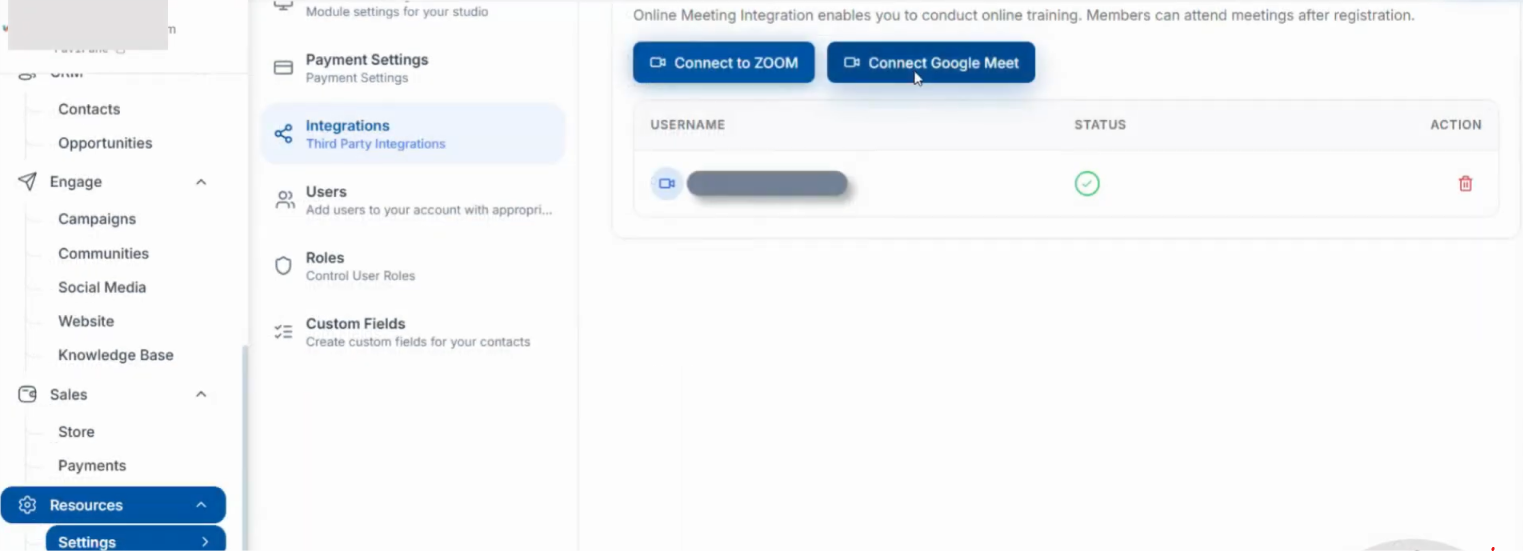
Step 2: Create an Event with Auto-Generated Google Meet Links
Now for the fun part: setting up your event! When you're creating or editing an event in Wajooba, look for the 'Online Meeting' option. Select this, and then choose the 'Auto-generate' feature. This is where Wajooba works its magic, automatically creating a unique Google Meet link just for this event. Make sure to pick the specific Google account you connected in the previous step. After that, hit 'Submit' and then 'Publish' to make your event live. Voila! Your event is now ready with a Google Meet link built right in.
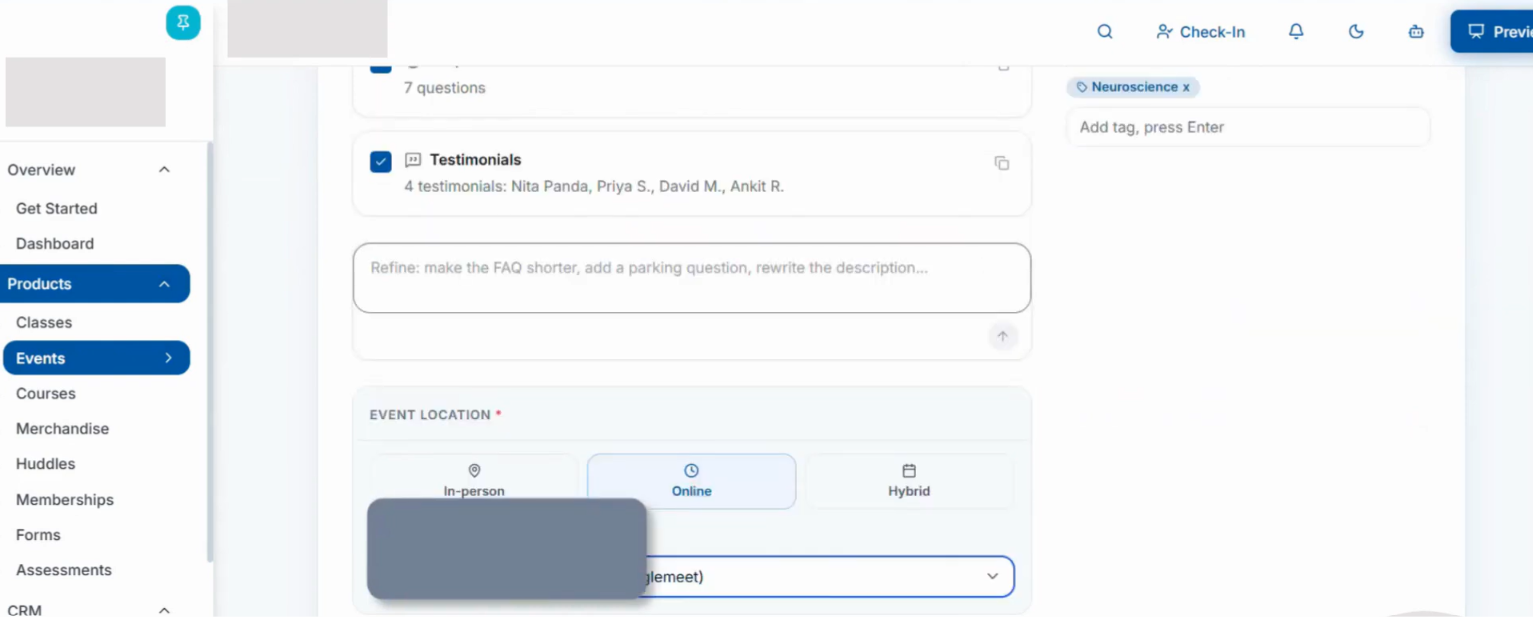
Step 3: Enroll a Member and Access the Join Link
To see your new setup in action, navigate to the 'Registration' section of your event. Add a member to the event – you can even add yourself for a test run! Once a member is added, click on the 'eye' button next to their name to open the member preview. You'll see their status change to 'Enrolled'. From this preview, you'll find a 'Join Meet' button. Click on it, and you'll be taken directly to your class or event's Google Meet. How simple is that?

Tips & Best Practices
- Always double-check that you've selected the correct Google account during event setup, especially if you manage multiple accounts.
- Do a quick test run by enrolling yourself as a member and trying to join the Meet link to ensure everything is working perfectly before your live event.
- Remember, auto-generating links saves you from manually creating and sharing them, so embrace this automation to streamline your workflow!
- Communicate clearly with your members that the Google Meet link will be automatically provided by Wajooba upon registration.
Troubleshooting
If your Google Meet link isn't appearing or you're having trouble connecting: First, ensure your Google account is fully authorized within Wajooba's integration settings. Sometimes, simply re-connecting or refreshing the authorization can resolve minor glitches. If the link is still missing after setup, double-check that you selected 'Online Meeting' and 'Auto-generate' for the event. If issues persist, Wajooba's friendly support team is always there to help you out!
What's Next
Fantastic! With auto-generated Google Meet links, you've just streamlined your event management. Your next step is to promote your amazing classes and events! Share your Wajooba event pages widely, confident that your registrants will have instant access to their online meeting space. This frees you up to focus on creating incredible content and connecting with your audience.
Learn More
- Wajooba Help Center: Managing Event Registrations
- Google Meet: Getting Started Guide
Related Articles
- Setting Up Automated Email Reminders for Events
- Customizing Your Event Landing Pages in Wajooba
- Integrating Payment Gateways for Your Online Classes
Was this article helpful?
Related articles
Still need help?
Can't find what you're looking for? Our team is happy to help.