

Embed the Wajooba Course List Widget on Your Website!
Overview
Ready to showcase your amazing courses directly on your website? ✨ The Wajooba Course Widget makes it incredibly simple to display your offerings beautifully, engaging your audience and guiding them straight to enrollment. Let's get your courses front and center and boost your business!
Prerequisites
- Access to your website's HTML or a platform where you can edit custom code (like a custom HTML block in Squarespace, WordPress with an HTML editor, etc.).
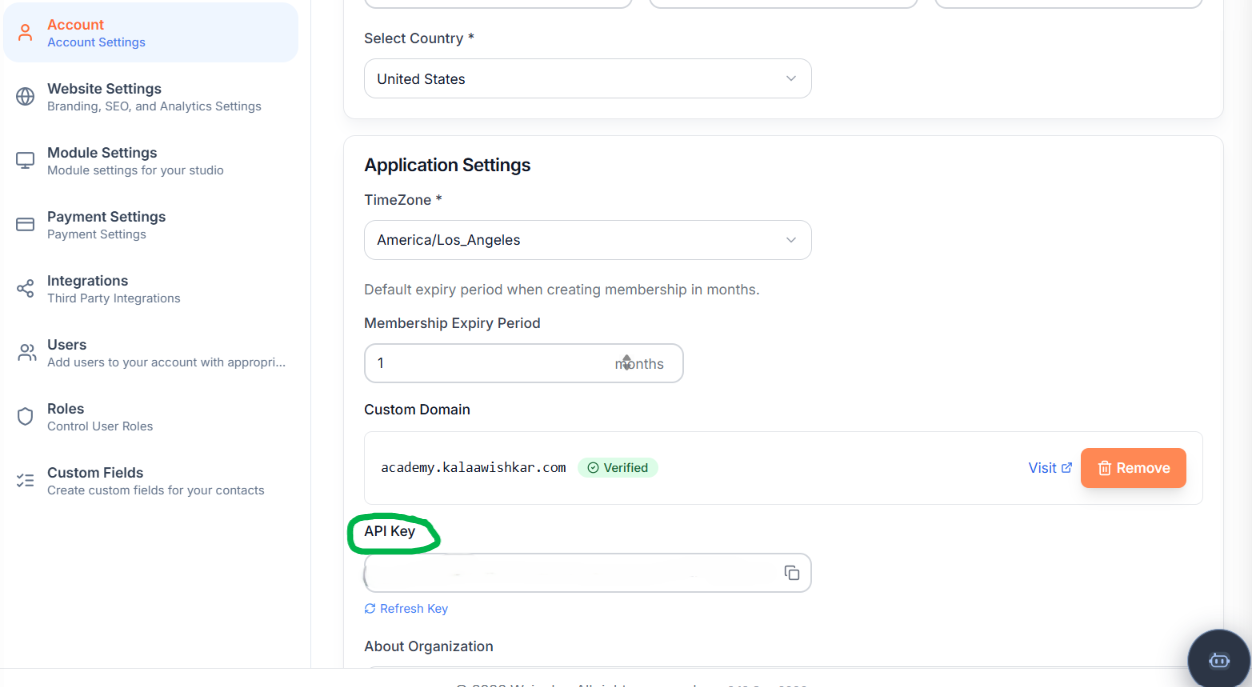
- Your unique Wajooba API Key. You'll find this in your Wajooba account settings.
- At least one published course within your Wajooba account that you want to display.
Steps
Step 1: Locate Your Unique Wajooba API Key
Before we get started, you'll need your special Wajooba API Key! This key connects your website to your Wajooba courses, allowing the widget to fetch your offerings securely. You can usually find it in your Wajooba account's 'Settings' or 'Integrations' section. Copy it somewhere safe, you'll need it very soon! If you're having trouble finding it, don't worry, our support team is always here to help you out. You've got this!
Step 2: Add the Widget Container to Your Website
Now, let's make a welcoming home for your course widget on your website! Navigate to the HTML of the page or post where you want your courses to appear. Find the exact spot where you'd like your courses to be displayed and paste this simple line of code. This <div> acts as a special placeholder for all your amazing courses to magically appear! ✨
<div id="wajooba-courselist-widget"></div>
You're doing great! Keep it up!
Step 3: Embed the Wajooba Course Widget Script
Almost there! Next, we need to load the magic script that powers your course widget. Just before the closing </body> tag (or sometimes in the <head> section, but placing it before </body> is often best for page loading performance), add the following script. This line tells your website to fetch and run the Wajooba course widget, bringing your courses to life!
<script src="[SCRIPT_URL]"></script>
Remember to replace [SCRIPT_URL] with the actual URL where your wajooba-courses-widget.js file is hosted. Your Wajooba platform documentation will provide the exact URL for this script.
Step 4: Configure Your Widget with Your API Key & Customizations
This is where you make your widget truly yours! You'll add your API key and customize how your courses look directly within the <div id="wajooba-courselist-widget"> tag you added in Step 2. Just add 'data-' attributes to control various aspects, like colors, fonts, and even the text on your 'Enroll' buttons. It's super flexible!
Important Security Note: Please be aware that your API key will be visible in your website's source code if someone views it. For most public course displays, this is common practice and acceptable, but it's good to be informed about its exposure. Please confirm with us if you have any security concerns about this!
Here’s a breakdown of the attributes you can use:
| Attribute | Description | Default | Example |
|---|---|---|---|
[API_KEY_ATTRIBUTE] | Your unique API key from Wajooba, absolutely essential for fetching and displaying your courses. Remember to replace this placeholder with the actual attribute name provided by Wajooba (e.g., data-api-key). | data-api-key="your_secret_api_key_here" | |
data-enroll-base-url | The base URL for your Wajooba course pages. If a course's Enroll URL is a 'slug' (e.g., 'post-arangetram-level'), the widget will combine this base URL with the slug to create the full, direct link (e.g., https://your-tenant.onwajooba.com/courses/post-arangetram-level). This ensures your visitors land exactly where you want them! | data-enroll-base-url="https://your-academy.onwajooba.com/courses/" | |
[BACKGROUND_COLOR_ATTRIBUTE] | Sets the background color of the individual course cards, helping them blend with or stand out from your site's design. | (Widget Default) | data-background-color="#f8f8f8" |
[TEXT_COLOR_ATTRIBUTE] | Sets the text color for course titles and descriptions, ensuring readability. | (Widget Default) | data-text-color="#333333" |
[BUTTON_COLOR_ATTRIBUTE] | Sets the background color for the 'Enroll' buttons, making them pop and inviting clicks. | (Widget Default) | data-button-color="#007bff" |
[FONT_FAMILY_ATTRIBUTE] | Specifies the font family for the widget text. Use web-safe fonts or fonts loaded on your site for best results. | (Widget Default) | data-font-family="'Open Sans', sans-serif" |
[FONT_SIZE_ATTRIBUTE] | Sets the base font size for the widget, allowing you to match your site's typography. | (Widget Default) | data-font-size="16px" |
[BUTTON_LABEL_ATTRIBUTE] | Customize the text on the 'Enroll' buttons to better suit your branding or call to action. | "Enroll" | data-button-label="Start Learning!" |
[EMPTY_MESSAGE_ATTRIBUTE] | The friendly message displayed if no courses are currently available to show. A great opportunity to reassure your visitors! | "No courses yet!" | data-empty-message="We're adding exciting new courses soon! Check back!" |
Here's a complete example of your embedded widget with some common customizations. Remember to replace the placeholder attribute names and values!
<div id="wajooba-courselist-widget"
     [API_KEY_ATTRIBUTE]="your_secret_api_key_here"
     data-enroll-base-url="https://your-academy.onwajooba.com/courses/"
     [BACKGROUND_COLOR_ATTRIBUTE]="#f8f8f8"
     [BUTTON_COLOR_ATTRIBUTE]="#ff7e5f"
     [BUTTON_LABEL_ATTRIBUTE]="Get Started"
     [EMPTY_MESSAGE_ATTRIBUTE]="New courses are on their way! Stay tuned!"
>
</div>
<script src="[SCRIPT_URL]"></script>
Fantastic! You've successfully set up and configured your Wajooba Course Widget! Give your page a refresh and see your beautiful courses appear, ready to attract new learners! ✨
Tips & Best Practices
- Start with the basics! Don't feel pressured to customize every single option at once. Get the widget working beautifully first, then experiment with colors, fonts, and labels to perfectly match your brand.
- Test, test, test! After embedding, always take a moment to check your website on different devices (like mobile phones, tablets, and desktops) to ensure your course display looks perfect and is easy to use everywhere.
- Use your
data-enroll-base-urlcarefully! This attribute is crucial for ensuring your visitors land on the correct course page every time. Double-check your URL for accuracy – a small typo can lead to a broken link! - While your API key is visible in your website's source code, it's still best practice to treat it with care. Avoid sharing it directly with others outside of your team.
- Remember the widget is self-contained – no complex frameworks are needed! This means less hassle for you and a smoother experience for your website.
Troubleshooting
Don't worry if things don't look perfect on the first try! Here are some friendly solutions to common issues you might encounter:
- Widget Not Showing Up? First, double-check that your
<div id="wajooba-courselist-widget">is exactly as written and that the script tag for[SCRIPT_URL]is present on your page. Next, ensure your API key is correctly entered with the right attribute name and that you actually have courses marked as 'published' in your Wajooba account. Sometimes a simple refresh of your browser cache can help too! - 'No Courses Yet!' Message? This is a common one! It usually means your API key might be incorrect or missing, or you don't currently have any courses marked as 'published' and visible to the public in your Wajooba account. Head over to Wajooba to publish your courses or verify your API key's accuracy.
- Enroll Link Goes to the Wrong Page or a 404? This often happens if your
data-enroll-base-urlattribute isn't correctly set in yourdivtag. This is crucial for guiding visitors to your specific Wajooba course pages when the API only provides a course 'slug'. Double-check your base URL for any typos and ensure it's the full path to your courses. - Styling Doesn't Look Right (Colors/Fonts)? Ensure there are no conflicting CSS styles on your website that might be overriding the widget's default styling. You can often use your browser's developer tools (right-click -> 'Inspect Element') to inspect the course cards and identify any CSS conflicts.
What's Next
Congratulations on successfully embedding your Wajooba Course Widget! Now that your courses are beautifully displayed, here are some logical next steps to maximize your business growth:
- Promote Your New Page: Don't keep this amazing page a secret! Share your course display page with your audience through your newsletters, social media, blog posts, and any other marketing channels. Let everyone know about your incredible offerings!
- Analyze Performance & Optimize: Keep a close eye on your website analytics (like Google Analytics). See how visitors interact with your course display. Are they clicking 'Enroll'? Which courses are most popular? Use this data to refine your course descriptions or even plan new course offerings.
- Expand Your Course Library: Continue creating and publishing amazing courses in Wajooba! Your widget is designed to automatically update and display new published courses, making it easy to keep your offerings fresh and engaging without extra work on your website.
Learn More
- Wajooba Documentation: How to find your API Key
- Wajooba Course Creation Guide: Tips for engaging courses
- Understanding HTML 'data-' Attributes for Web Developers
- Wajooba Support Portal
Related Articles
- Creating Engaging Course Descriptions for Your Wajooba Courses
- Setting Up Your Wajooba Academy: A Beginner's Guide
- Best Practices for Marketing Your Online Courses Effectively
- Boosting Enrollments with Strategic Course Placement
Was this article helpful?
Related articles
Still need help?
Can't find what you're looking for? Our team is happy to help.