

Accept Online Donations
Overview
Ready to empower your cause by collecting donations online? This guide will walk you through setting up your very own professional donation campaign using the Wajooba Donations module. It's super simple, even if you're not tech-savvy, and you'll be collecting secure contributions in no time!
Prerequisites
- A Wajooba account
- Your payment setup configured (this is crucial for receiving donations!)
Steps
Step 1: Access Your Donations Module
First things first, let's navigate to where the magic happens! From your Wajooba dashboard, look for 'Products' and then click on 'Donations'. If this is your first campaign, you'll see a welcoming screen inviting you to create your very first one. You're doing great! [SCREENSHOT: Donations list screen showing 'No donations available' prompt]
Step 2: Boost Your Campaign Creation with AI (Optional)
Want a head start? If you have existing content on your website that describes your mission or the campaign you're planning, you can optionally import it! Simply enter your website URL, and our AI can use that content to help build your campaign page faster. It's like having a helpful assistant! [SCREENSHOT: Website URL input field for content import]
Step 3: Let AI Craft Your Campaign Page
Now for the fun part! Describe your donation campaign to our AI. Think about what you want to achieve. For example, you could type: 'Community food drive', 'Medical relief fund', 'School supplies campaign', or 'Clean water initiative'. Once you've described your vision, click 'Generate'. Our smart AI will then build a beautiful landing page draft for you! [SCREENSHOT: AI prompt input field with example ideas and 'Generate' button]
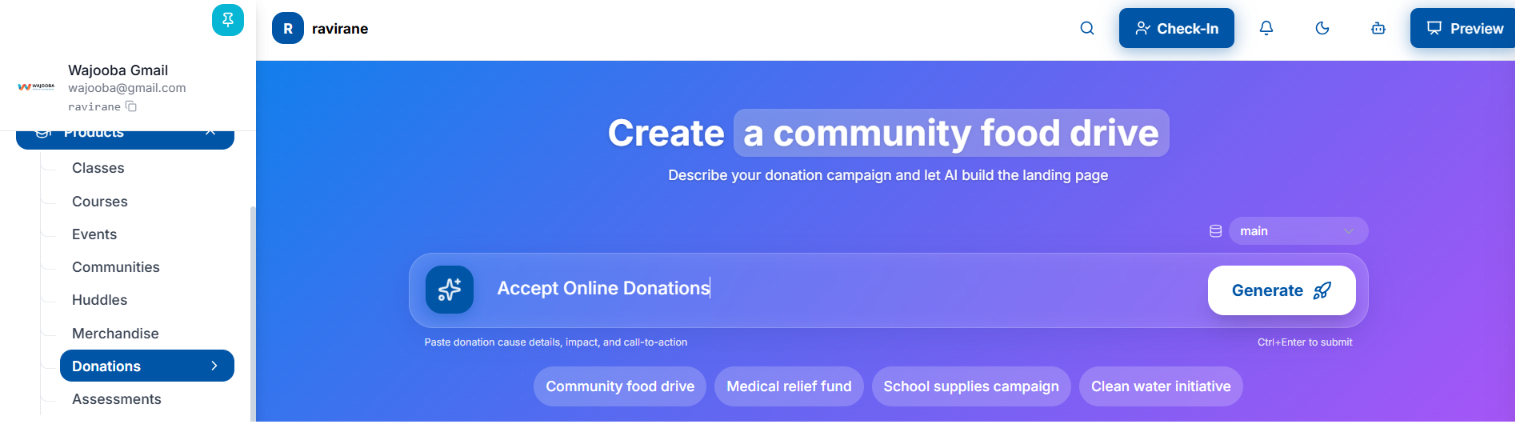
Step 4: Fine-Tune Your Campaign Details
After the AI generates your page, it's time to add your personal touch and ensure all the crucial details are correct. You'll be able to review and edit key information such as your 'Donation Method', 'Organization/Creator Name', your 'Contact Info', your 'Goal Amount' (if you have one), and an 'Urgency message' to inspire action. Take your time here to get everything just right! [SCREENSHOT: Campaign details form with fields like Donation Method, Goal Amount]
Step 5: Design Your Stunning Donation Landing Page
Now, let's make your page shine! Our easy-to-use page builder allows you to customize the look and feel. You can edit the hero banner, the campaign name, add a compelling short description, and even customize the text on your donation button (e.g., 'Donate to Education'). You'll see 'Edit' and 'Published' views, so you know what your supporters will see. Don't forget to explore the 'Style' and 'SEO & Meta' tabs to optimize your page further. Always hit 'Save' to keep your changes! [SCREENSHOT: Page builder interface showing hero banner, text editing, and buttons]
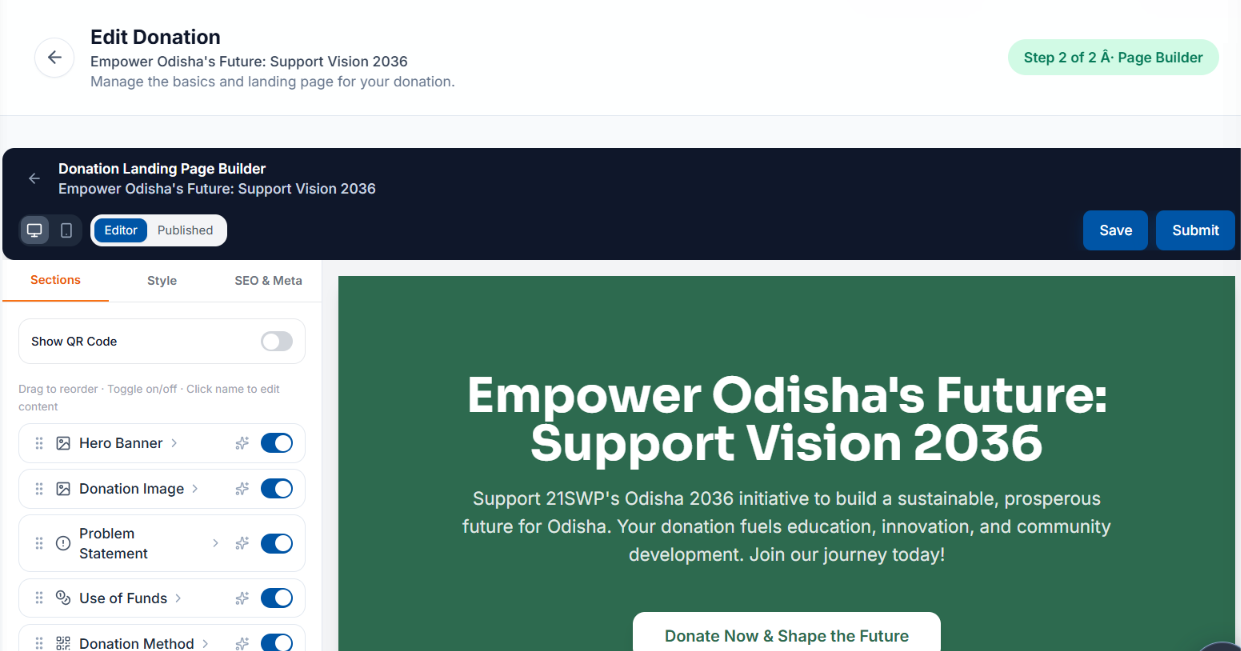
Step 6: Set Your Donation Options and Go Live!
Almost there! Next, head over to the 'Pricing' tab. Here, you can define the donation amounts you want to offer. You can add fixed amounts (like USD 5.00, USD 10.00) or offer a flexible option. You can also choose if each amount is public or hidden, and give it a name. Once you're happy with your options, publish your campaign! You'll see a confirmation message like 'Donation published'. Congratulations, your campaign is now live! 🎉 [SCREENSHOT: Pricing tab showing fields for adding donation amounts]

Tips & Best Practices
- Craft a Compelling Description: When describing your campaign for AI, be clear and emotive. The more compelling your description, the better the AI can craft your initial page!
- Set Achievable Goals: If you're setting a 'Goal Amount', make it realistic and inspiring. Update your supporters on your progress!
- Offer Flexible Giving: Provide a range of donation amounts to suit different budgets, and consider offering both one-time and recurring options.
- Visually Engage: Use a powerful hero banner image on your landing page that tells your story and connects with your audience.
- Share, Share, Share! Once your campaign is live, don't forget to share it widely across your social media, email list, and website!
Troubleshooting
Don't worry, we've got you covered if you run into any bumps! If your campaign isn't visible to the public, double-check that you've toggled it to 'Published' in the settings. If donation amounts aren't showing, head back to your 'Pricing' tab and ensure you've added amounts and they are set to 'public'. If payments aren't going through, first verify your [PAYMENT_PROVIDER] account is properly connected and active. Finally, if a donor isn't listed in your 'Donors' tab, ensure they completed the checkout process fully. If issues persist, our support team is always here to help!
What's Next
You've successfully launched your donation campaign – amazing! Now, let's make sure it reaches your incredible supporters and you can manage their contributions. Once published, your campaign will appear on a public 'Donation Campaigns' page, where supporters can click 'View Details' or 'Donate Now'. They can choose a one-time donation or opt for a monthly contribution, often for a selected duration. They'll also have the option to cover the processing fee, ensuring your organization receives the full intended amount! They'll fill in their details and make a secure card payment. You can easily manage all your donors from the 'Donors' tab within your campaign, where you'll see a list of names, emails, and phone numbers. It's time to share your unique campaign link with your audience and watch your impact grow!
Was this article helpful?
Still need help?
Can't find what you're looking for? Our team is happy to help.